
Guides
How to find your Device's Port
0 CommentChoose Your Computer's OS
Skip to the section below that matches your operating system.
Windows
Open Device Manager
On your keyboard, press and hold the Windows key, then press R to open run menu. Type "devmgmt.msc" in the text field and click "Ok" to open device manager.
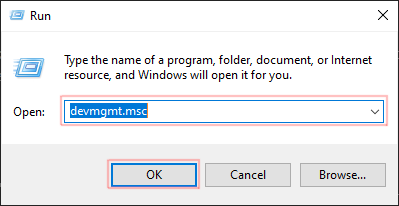
Open device manager using the run menu.
Identify the Port
Locate entry labeled "Ports (COM & LPT)". Expand the entry by clicking on the small arrow to the left of the text. Take note of the items that currently there.
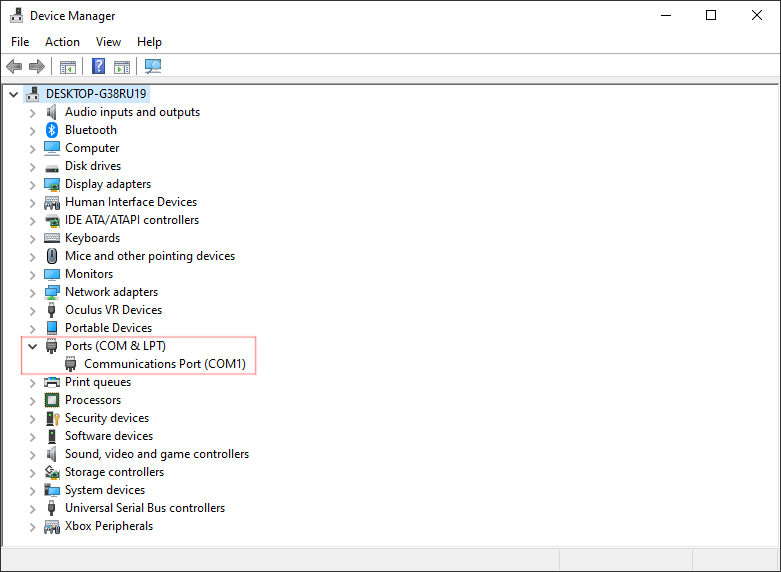
Locate 'Ports (COM & LPT)' section in the device manager.
Now, plug in your device. You should see a new item appear. Followed by "(COMX)", where "X" is a integer. This "COMX" is the name of your port.
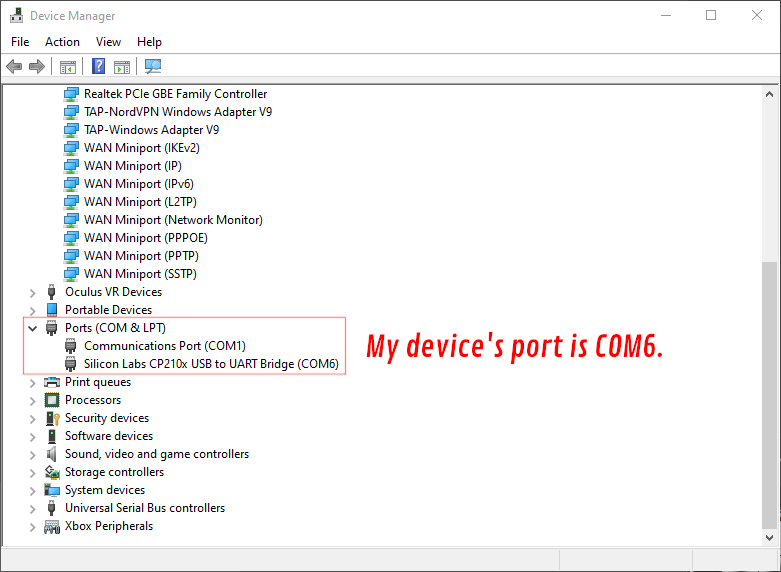
Identify new item after plugging in your device.
Linux
Open a terminal. In the terminal enter ls /dev/tty*.
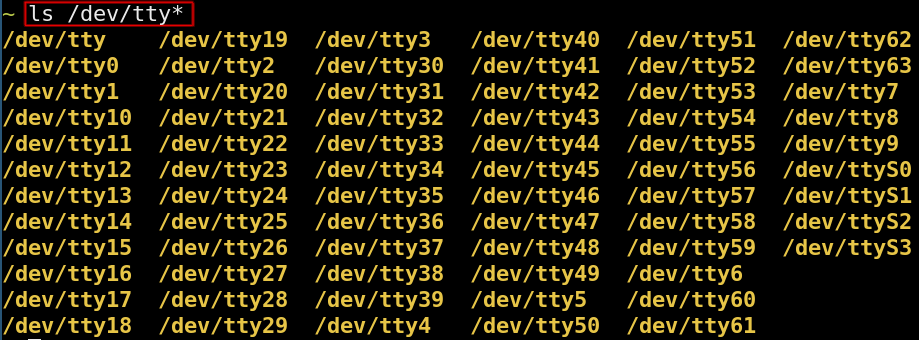
List files in dev directory starting with 'tty'.
Now plug in your device and again enter ls /dev/tty*. The full path to the new item that appears is the port of your device. For example, if "ttyUSB0" appears, then the port of the device is "/dev/ttyUSB0".
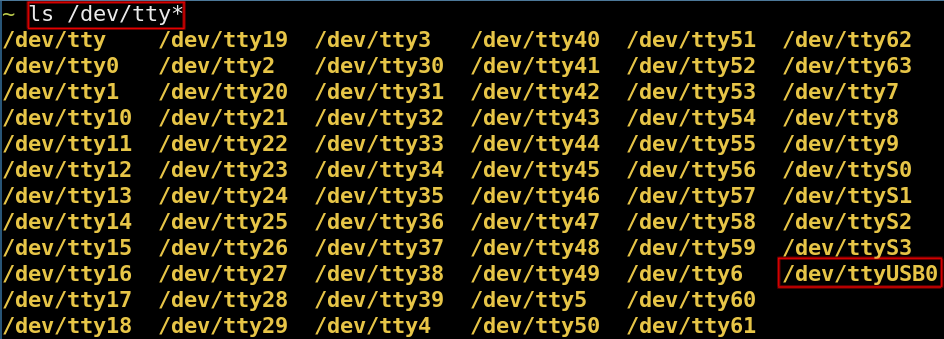
Identify new file in dev directory after device is plugged in. For this example my port would be '/dev/ttyUSB0'.
MacOSX
Driver Installation
If this is your first time connecting an ESP8266 to your computer, you will need to install the SiLabs USB to UART driver in order for your computer to detect the device. Go to this link and scroll down to the "Macintosh OSX" section. Click on the "Download VCP" liink to download the driver.

Identify the Port
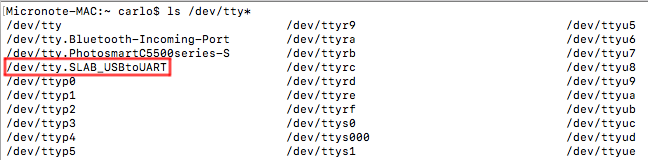
Using spotlight search enter "terminal" and open the terminal application. In the terminal enter ls /dev/tty* and observe the output. Now plug your ESP8266 NodeMCU into your computer and enter ls /dev/tty* again. You should notice a new item is output called "/dev/tty.SLAB_USBtoUART". This is the port of your device.
Comments (0)
Page 1 of 0
You need to be logged in to comment